
by Akcoren
This post shows very basic and simple c/c++ code compilation in Visual Studio with a brief introduction to Visual Studio Community.
Open Visual Studio and create a new project.
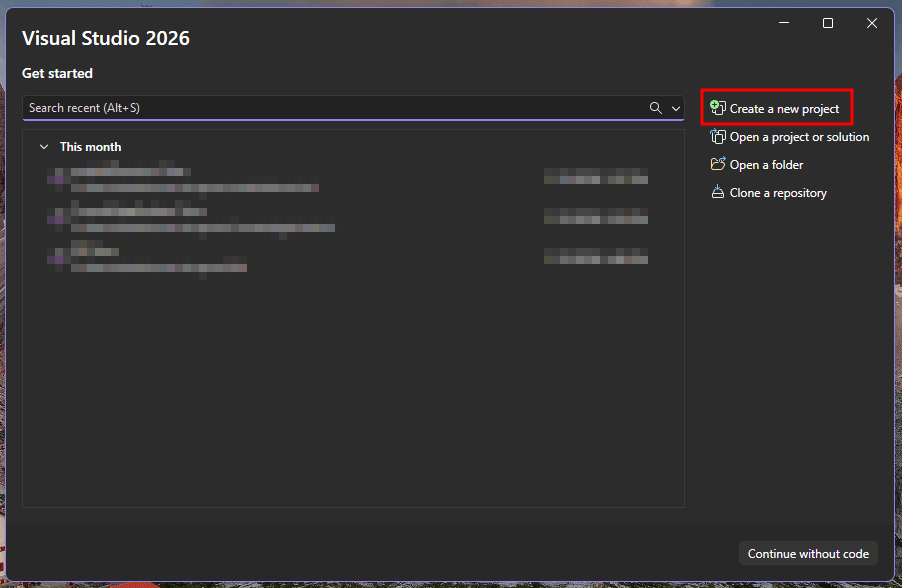
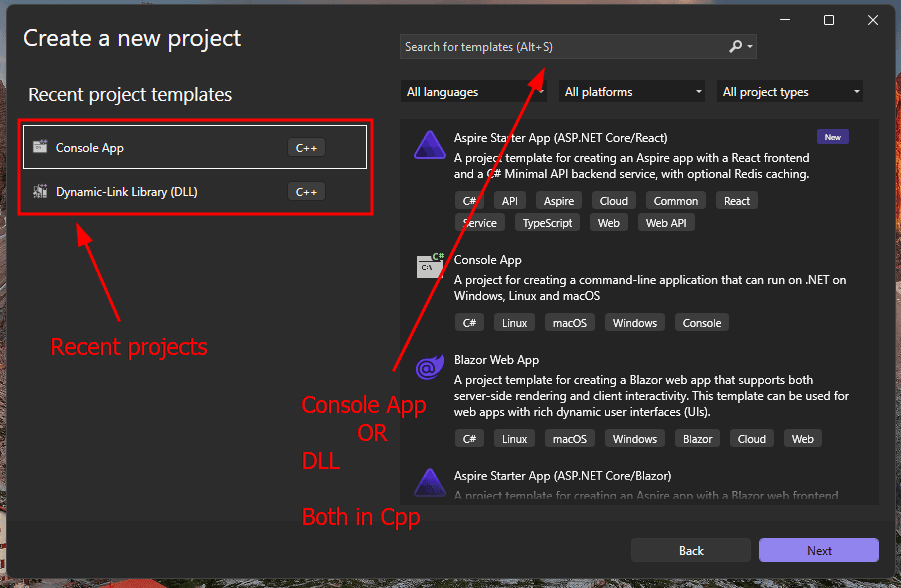
We are going to start with ConsoleApp for C++ in this guide.
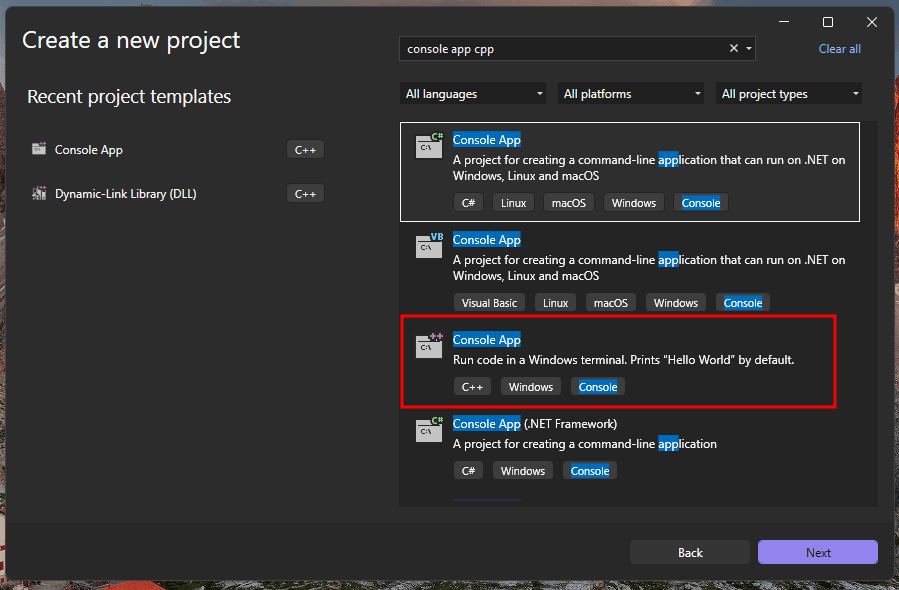
Name your project as you wish.
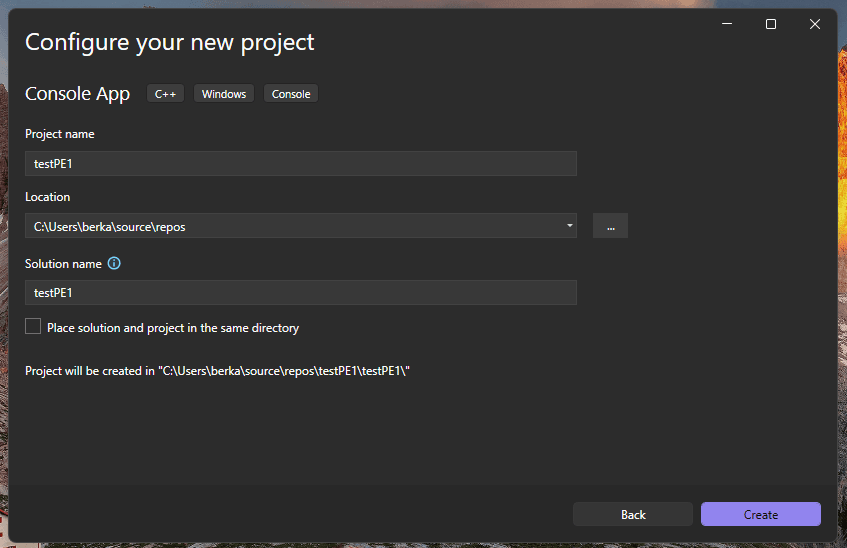
Visual Studio prepares a template code and proper compilers with header files for us. Following the template source code of the project we just created.
// testPE1.cpp : This file contains the 'main' function. Program execution begins and ends there.
//

#include <iostream>

int main()
{
    std::cout << "Hello World!\n";
}

// Run program: Ctrl + F5 or Debug > Start Without Debugging menu
// Debug program: F5 or Debug > Start Debugging menu

// Tips for Getting Started:
//   1. Use the Solution Explorer window to add/manage files
//   2. Use the Team Explorer window to connect to source control
//   3. Use the Output window to see build output and other messages
//   4. Use the Error List window to view errors
//   5. Go to Project > Add New Item to create new code files, or Project > Add Existing Item to add existing code files to the project
// 6. In the future, to open this project again, go to File > Open > Project and select the .sln fileFor this guide, we are going to build a simple PE that opens a window (Message Box) with a simple/changeable text in it. This reuires windows APIs. Following is the minimum working example with the proper headers included.
#include <iostream>
#include <stdio.h>
#include <Windows.h>

int main()
{
	std::cout << "Hello World!\n";
	printf("This is a test program for PE file format.\n");

	MessageBoxA(NULL, "This is a message box.", "PE File Test", MB_OK);
	return 0;
}Quick note here, In order to use windows APIs, we need to install windows software develop kit (Windows SDK) which comes with Visual Studio installation. Most of the time, I was able to compile the same code with the same headers and compilation options in linux and windows. However, for advanced features (I don’t know, maybe GUI or internals related etc.) an updated Windows 11 machine with Visual Studio might be required. Microsoft says for “Native” C/C++, developers should use Visual Studio in at least win 10 machines.
There are couple of things to point out.
#include <iostream>can be removed if you not gonna usestd::cout << "Hello World!\n. This is a C++ class for input output operations.#include <Windows.h>is the master include file for Windows applications which is used for `MessageBoxA()`in this case.
Let’s make it a simple C code and remove the extra lines. Change the file extension from .cpp to .c.
#include <stdio.h>
#include <Windows.h>

int main()
{
	printf("This is a test program for PE file format.\n");

	MessageBoxA(NULL, "This is a message box.", "PE File Test", MB_OK);
	return 0;
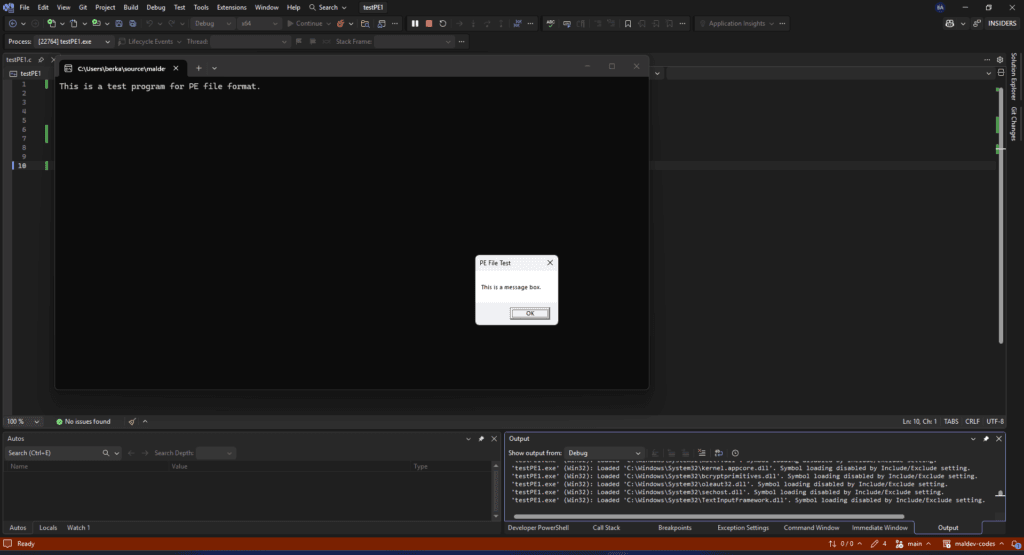
}Lets run this. Press Ctrl+Shift+B or F5 or press the run icon in the menu bar.

As one can see, this application opens a console before the message box. We can leave it as is or we can change the entry point of the application to disable console window appearing at the program run. If you want, you can do the following.
project properties -> linker -> System -> Subsystem -> Windows
project properties -> linker -> advanced -> entry point -> mainCRTStartup
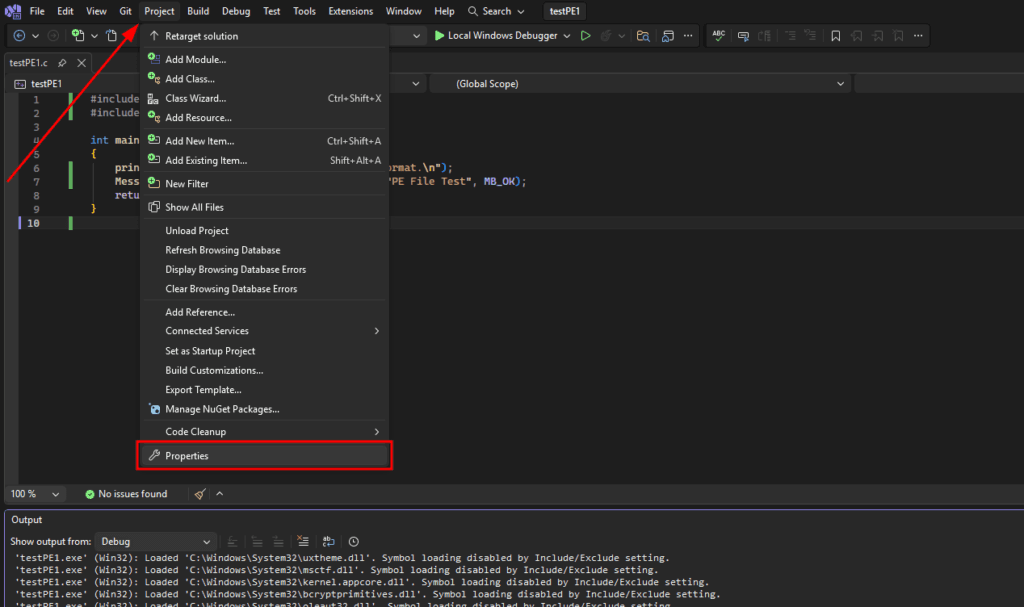
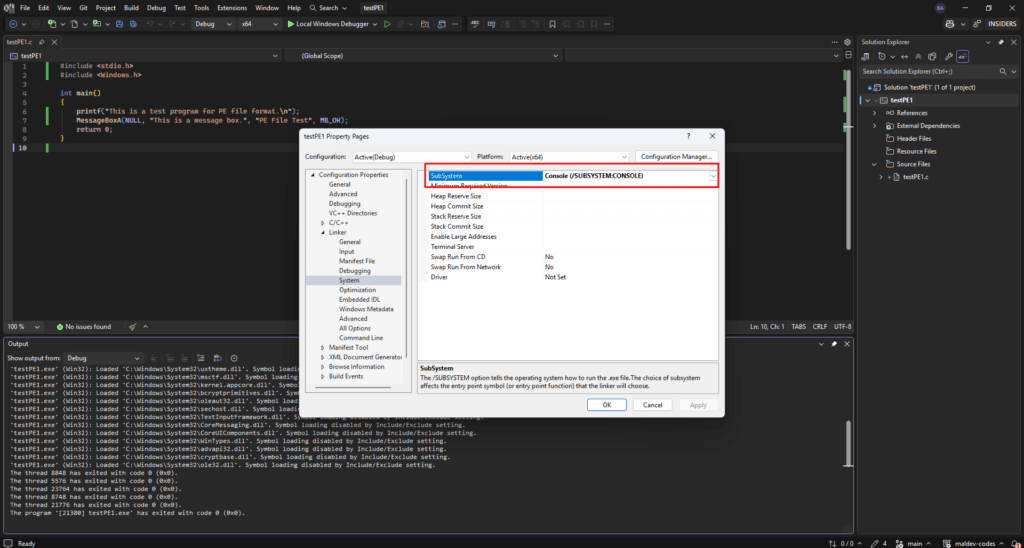
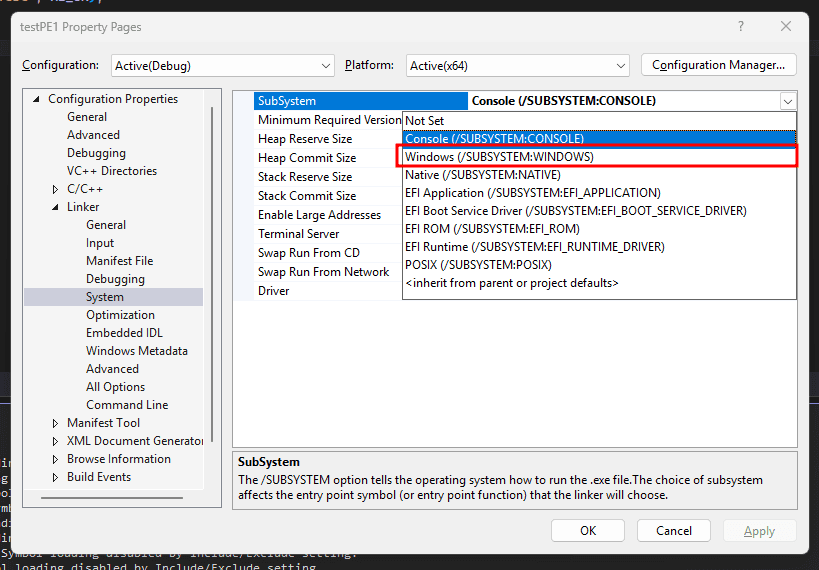
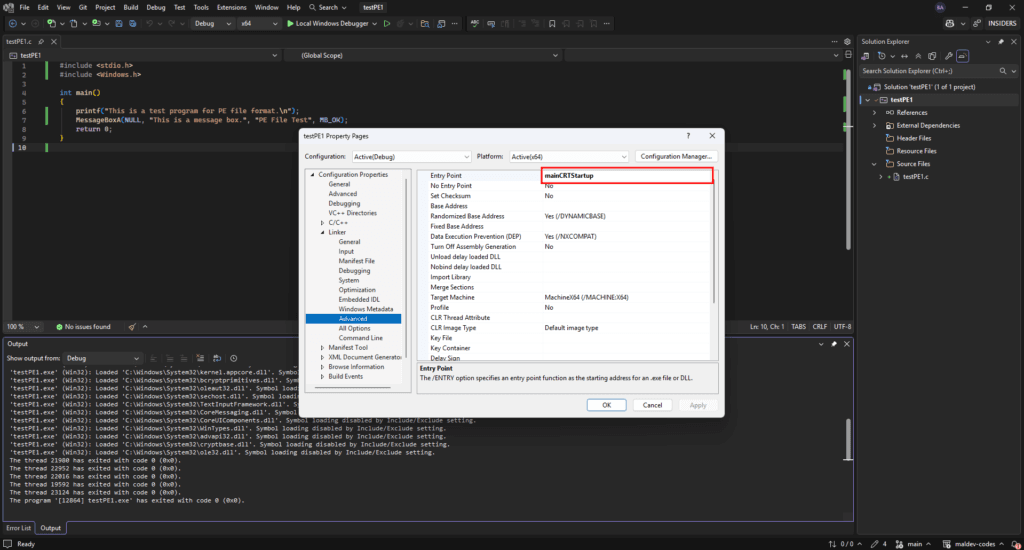
Then no console windows is opened when PE is executed. We finally have a very basic PE file that is written in C that uses a WIN32 API.
Now we add a simple .dll file that do the same thing. In order to do that, right click on the solution, add a new project and select .dll.
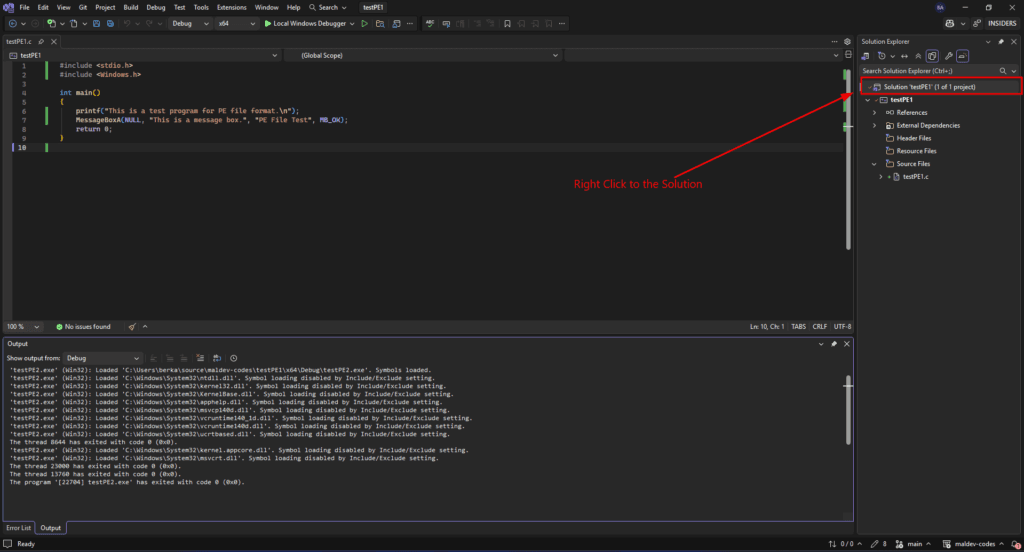
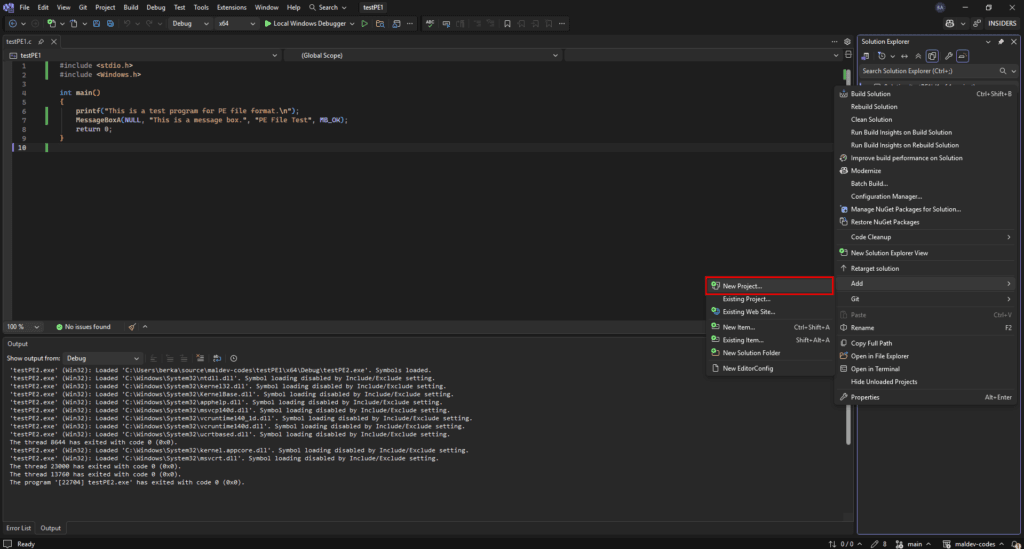
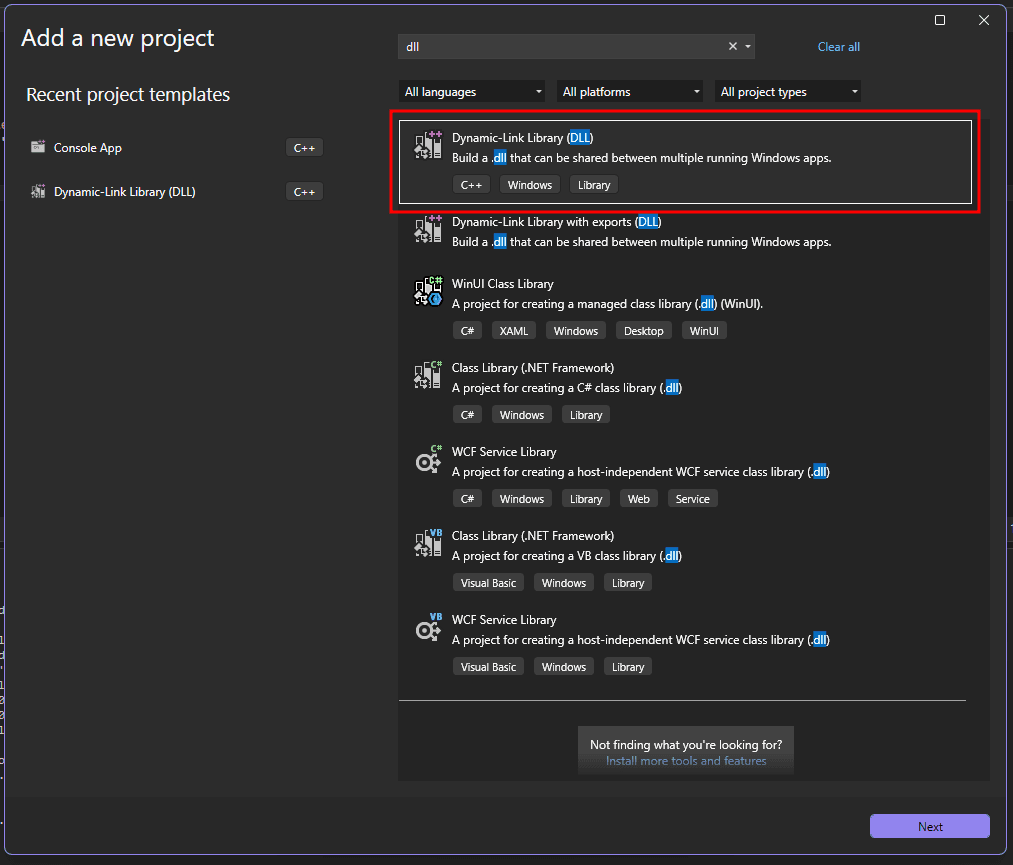
Set project name to testDLL1.
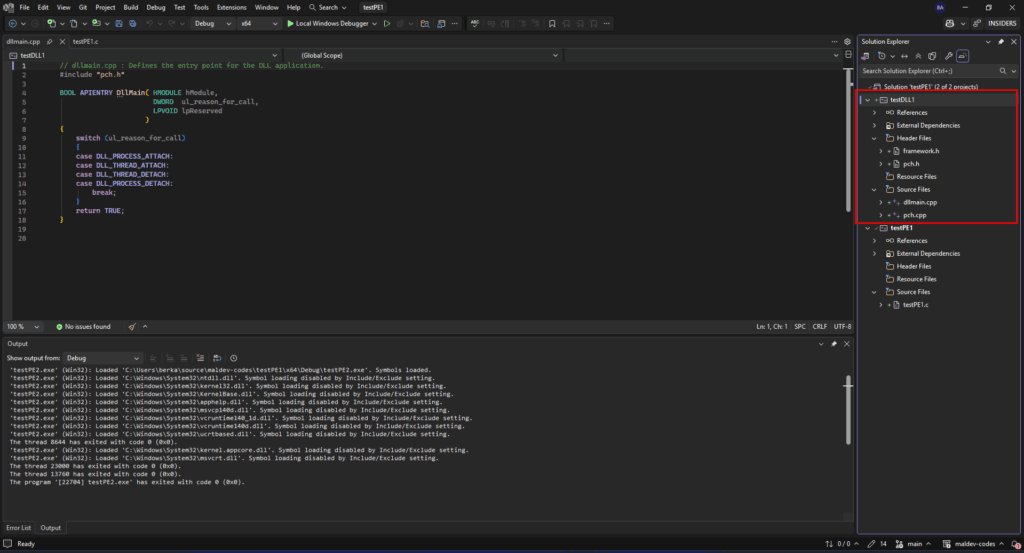
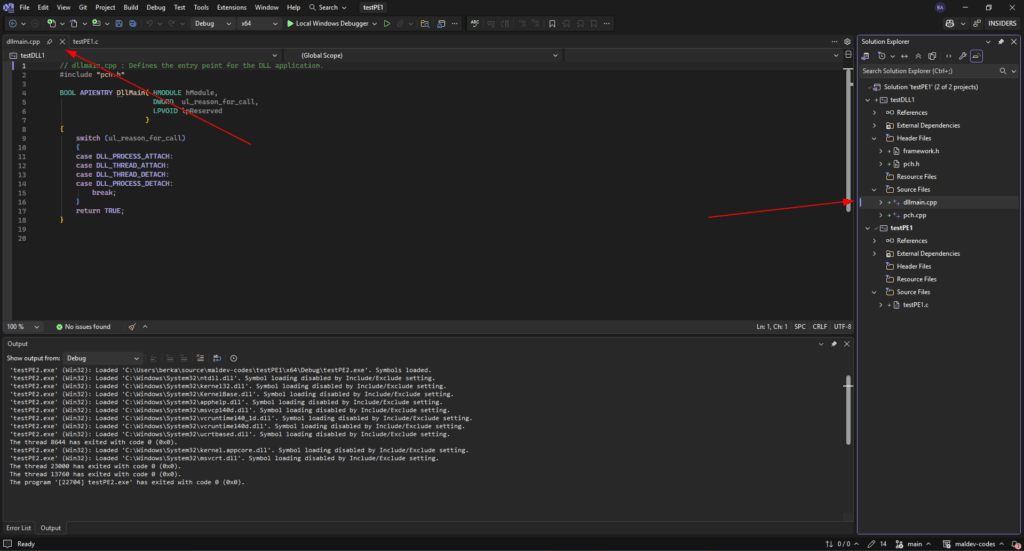
For demonstration purposes, we open another windows within the function defined in the .dll file and export that function to the main portable executable.
This is the template code comes with the `.dll` file.
// dllmain.cpp : Defines the entry point for the DLL application.
#include "pch.h"

BOOL APIENTRY DllMain( HMODULE hModule,
                       DWORD  ul_reason_for_call,
                       LPVOID lpReserved
                     )
{
    switch (ul_reason_for_call)
    {
    case DLL_PROCESS_ATTACH:
    case DLL_THREAD_ATTACH:
    case DLL_THREAD_DETACH:
    case DLL_PROCESS_DETACH:
        break;
    }
    return TRUE;
}We remove the extras for the sake of creating a minimum working example in C. Copy the following code block.
#include <windows.h>

// Exported function
extern __declspec(dllexport) void HelloWorld() {
    MessageBoxA(NULL, "Hello, World!", "DLL Message", MB_ICONINFORMATION);
}

// Entry point for the DLL
BOOL APIENTRY DllMain(HMODULE hModule, DWORD  ul_reason_for_call, LPVOID lpReserved) {
    switch (ul_reason_for_call) {
    case DLL_PROCESS_ATTACH:
    case DLL_THREAD_ATTACH:
    case DLL_THREAD_DETACH:
    case DLL_PROCESS_DETACH:
        break;
    }
    return TRUE;
}Let’s remove the precompiled headers framework.h, pch.h and pch.cpp. Simply right click and delete them.
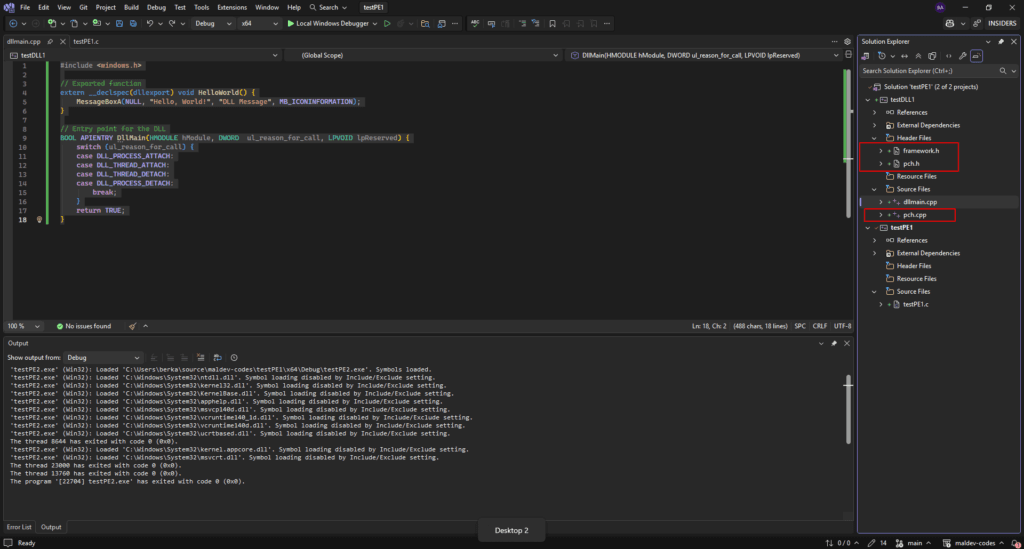
Remove the line #include "pch.h".
We can safely set compiler to don’t use precompiled header option. From the project tab, dll properties then select don’t use procompiled header.
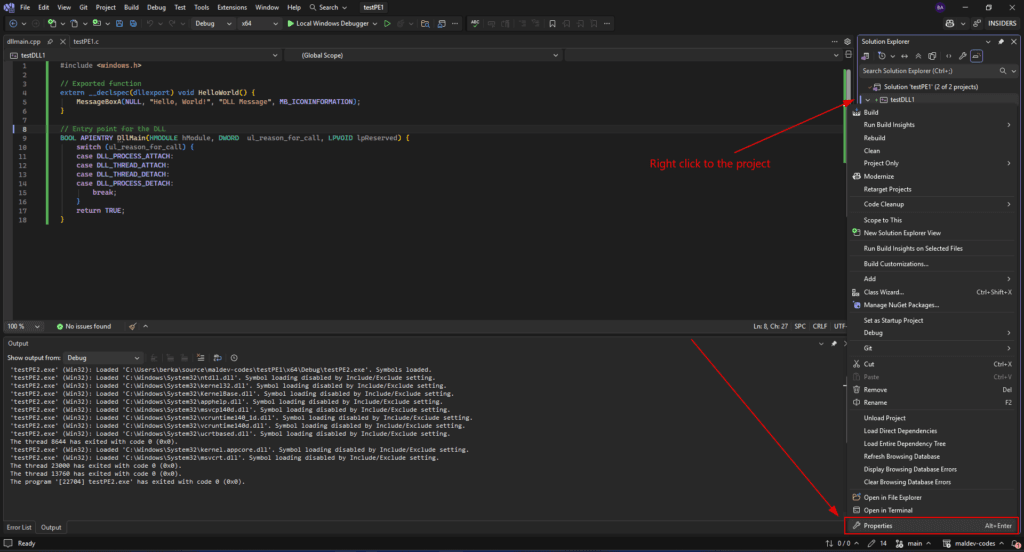
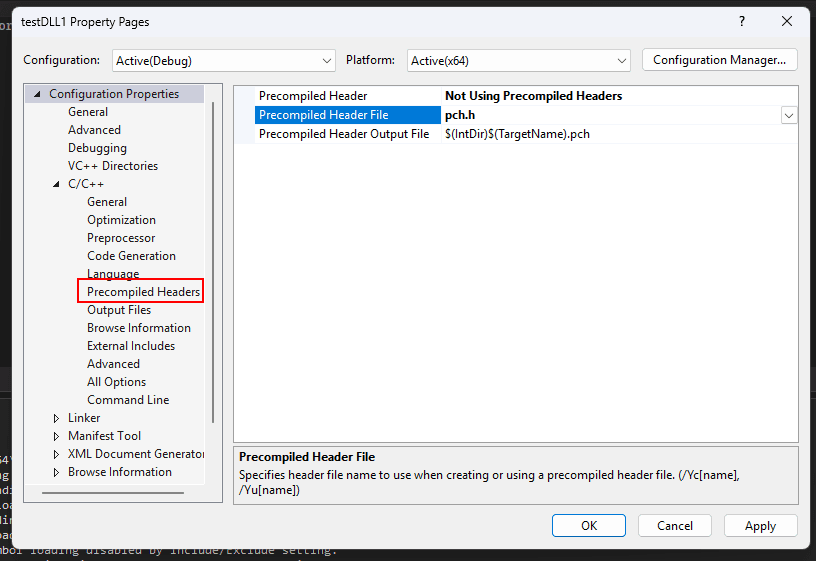
Then change the dllmain.cpp to dllmain.c. Now out .dll file is ready. We can test it using rundll32.exe.
rundll32.exe .\x64\Release\testDLL1.dll,HelloWorldThe format is
rundll32.exe <path-to-dll-file.dll>,<imported-function>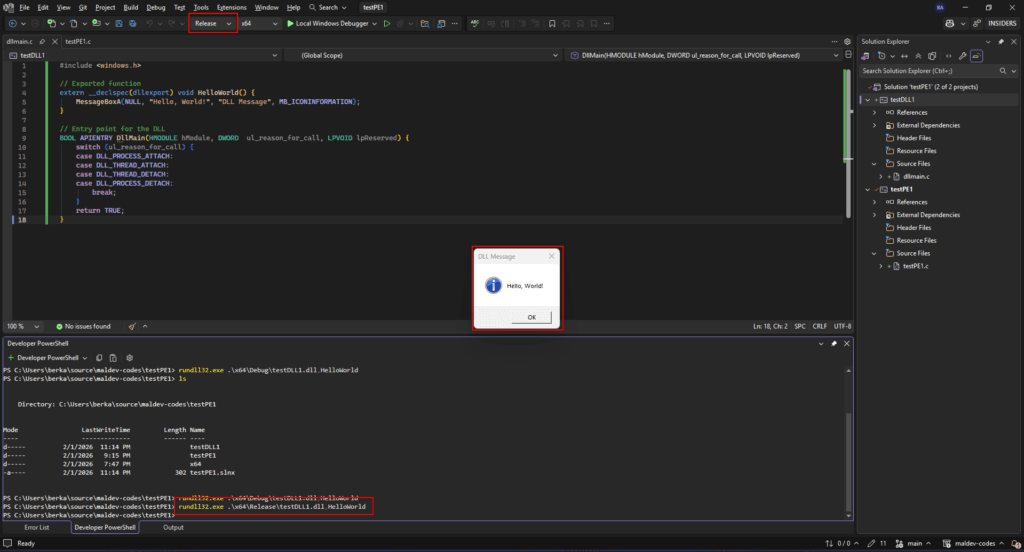
Our .dll file is working fine.
Lets call it from the PE. Replace the main executable code with the following.
#include <stdio.h>
#include <Windows.h>

// Constructing a new data type that represents HelloWorld's function pointer
typedef void (WINAPI* HelloWorldFunctionPointer)();

int main()
{
	MessageBoxA(NULL, "This is a message box.", "PE File Test", MB_OK);
	// Attempt to get the handle of the DLL
	HMODULE hModule = GetModuleHandleA("testDLL1.dll");

	if (hModule == NULL) {
		// If the DLL is not loaded in memory, use LoadLibrary to load it
		hModule = LoadLibraryA("testDLL1.dll");
	}

	// pHelloWorld stores HelloWorld's function address
	PVOID pHelloWorld = GetProcAddress(hModule, "HelloWorld");

	// Typecasting pHelloWorld to be of type HelloWorldFunctionPointer
	HelloWorldFunctionPointer HelloWorld = (HelloWorldFunctionPointer)pHelloWorld;

	// Invoke HelloWorld
	HelloWorld();
	return 0;
}Above code do the followings
- Retrieve DLL Handle
- Retrieve function address
- Type-cast the function address
The WIN23 API usage and specifics are beyond the scope of this blog post. Hence, I would not go into the details of that. Normally, .dll files and main code should be in the same folder but visual studio handles these for us.
Finally, press F5 to run the program.
As expected there is 2 message box is opened.
One should build the application in the Release mode. In order to that, change it from the menu bar. When you switch from Debug to Release, do not forget to change the entry point of the PE as mentioned above.
Conclusion & Commnets
This blog post summarizes the basic project creation and code compilation process in Visual Studio. We created a simple windows application by using WIN32 API. The project we created is composed of a single executable file and a DLL library file.